Administration
The administration interface is for managing users, roles, namespaces, projects, and API tokens.
Access it via the Admin link in the header or directly at /admin/
Navigation
The admin sidebar provides access to:
- Dashboard - Administration overview
- Users - Manage user accounts
- Roles - Configure roles and permissions
- Namespaces - Manage namespaces
- Projects - Manage projects
- API Tokens - Generate and manage API tokens
Dashboard
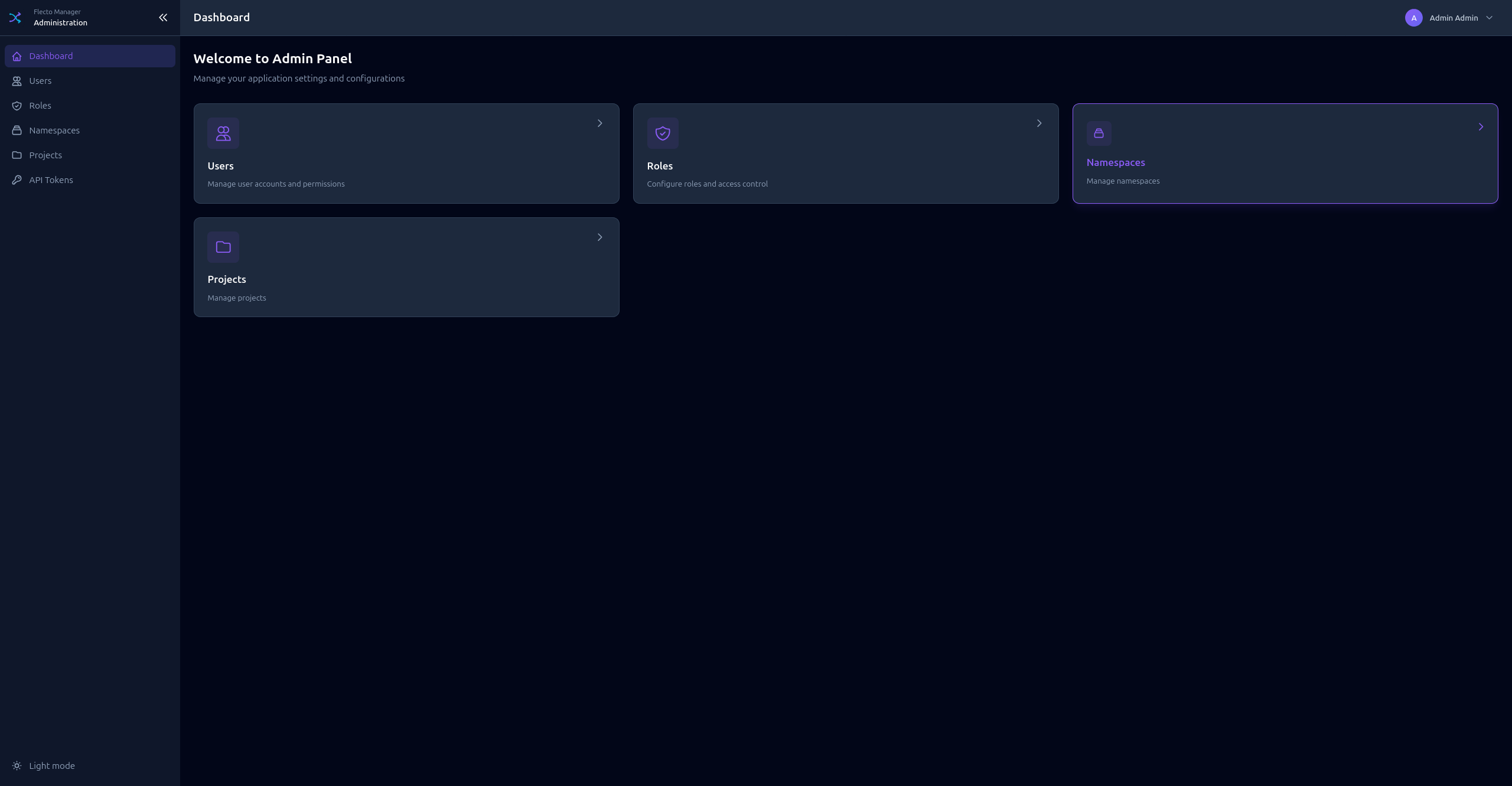
The admin dashboard shows a global overview:
- Total users, roles, namespaces, projects
- System status
- Quick links to common actions
Users
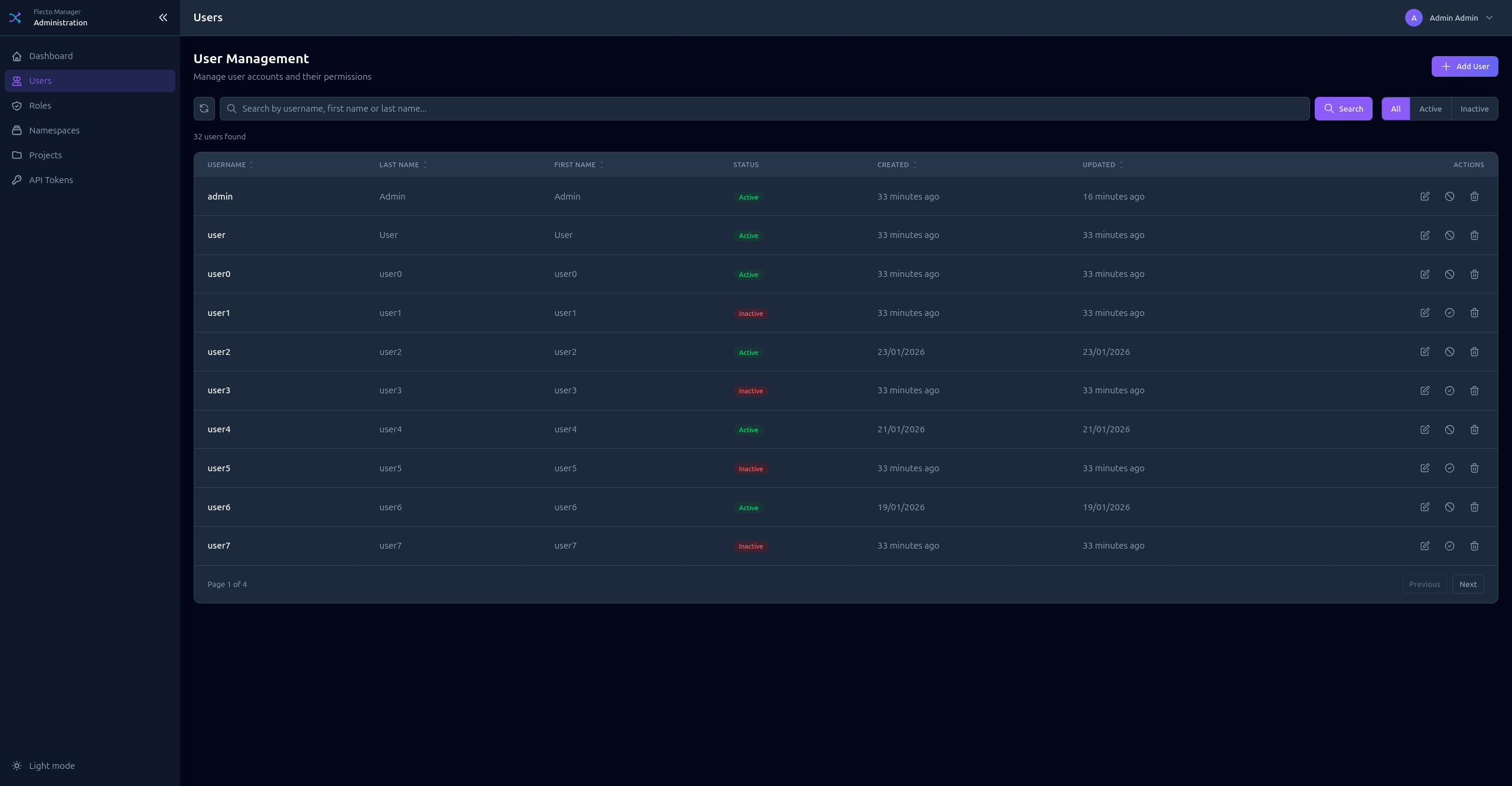
Manage user accounts for the Manager.
Creating a User
- Click Add User
- Enter Username (unique identifier)
- Enter Password
- Optionally add First name and Last name
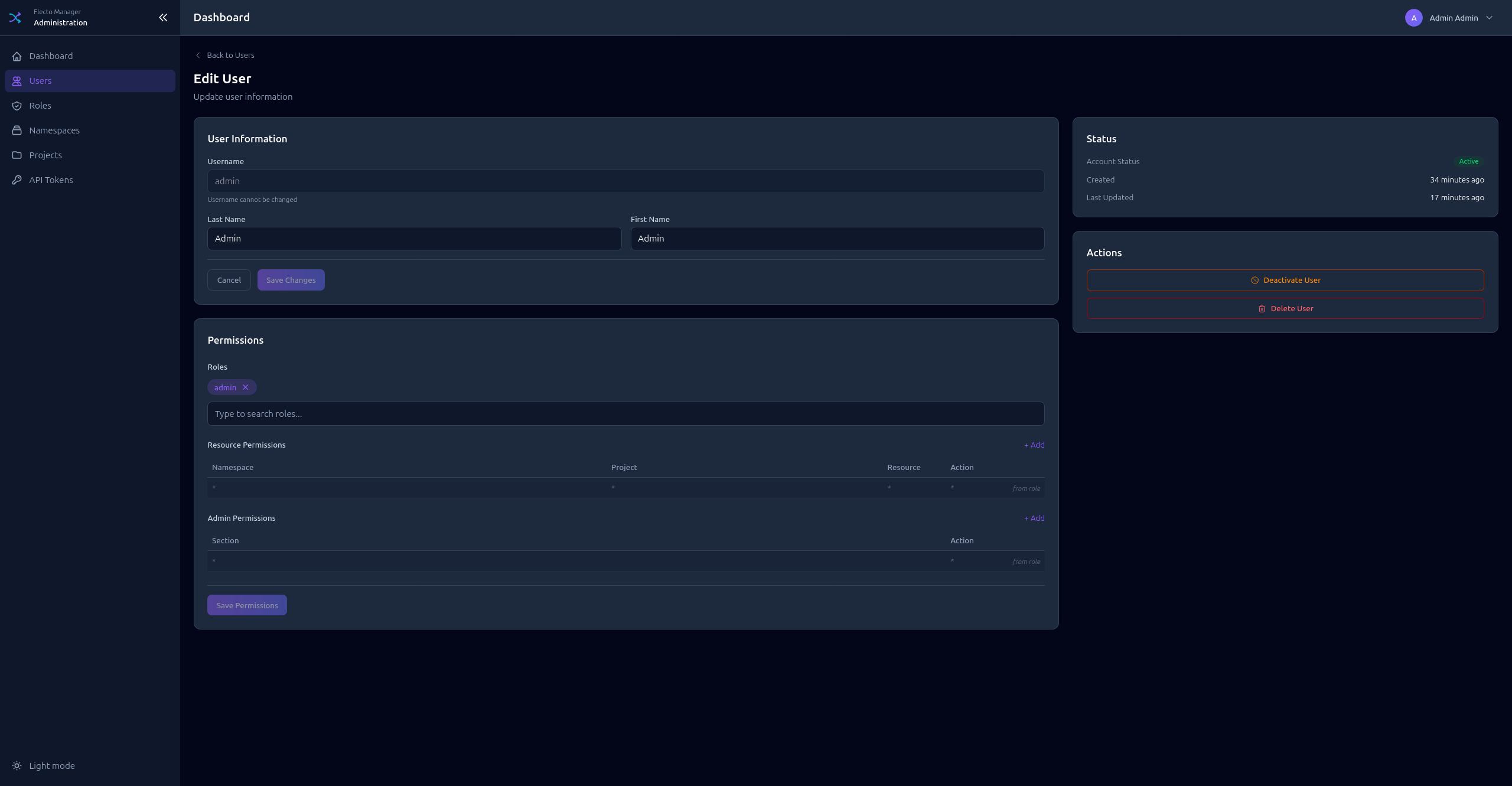
- Assign Roles to the user
User Authentication
Users can authenticate via:
- Local credentials - Username and password
- OpenID Connect - If configured (Google, Keycloak, etc.)
Roles
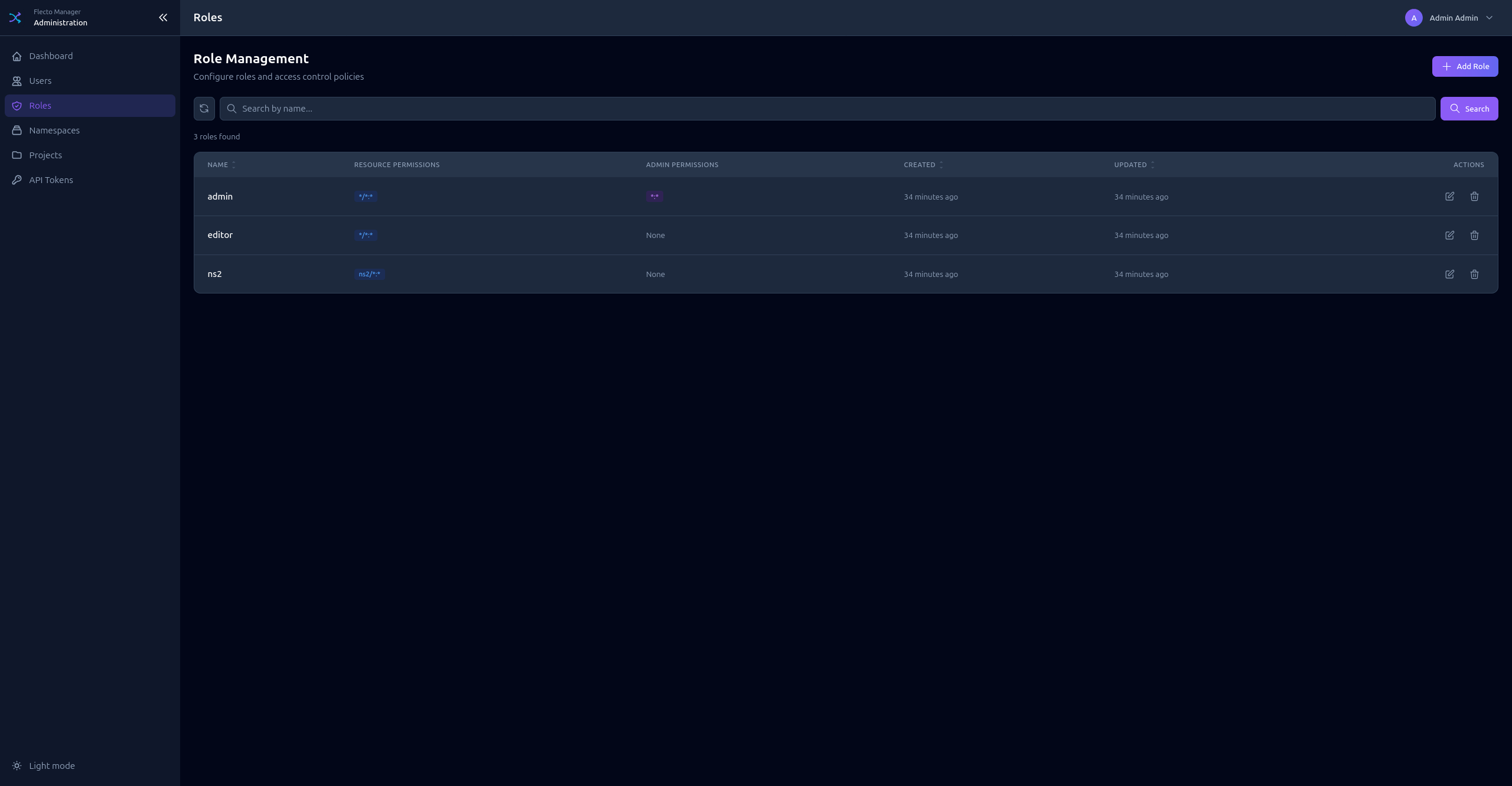
Roles define what users can access and modify.
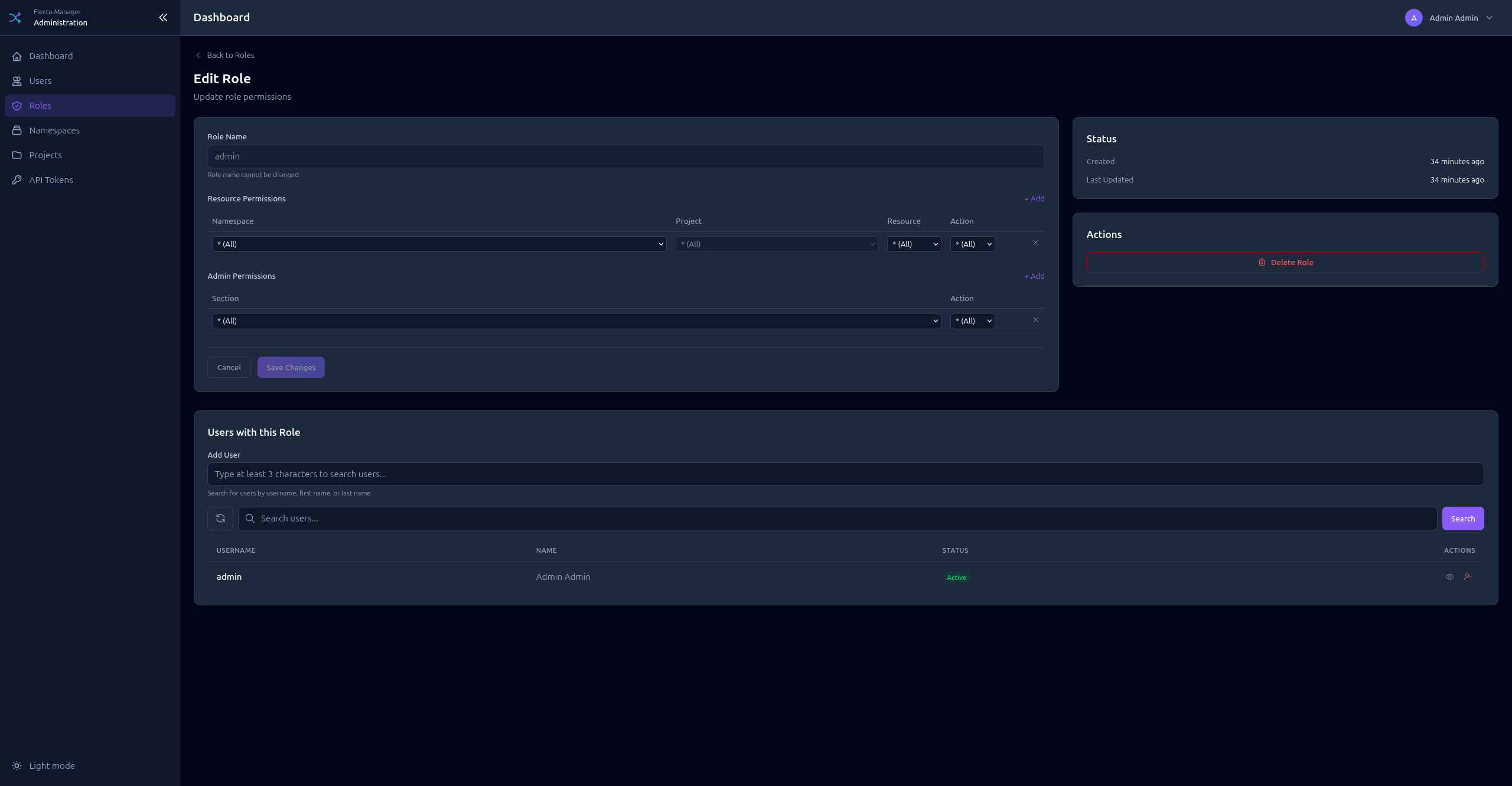
Creating a Role
- Click Add Role
- Enter a Name for the role
- Configure Admin Permissions (access to admin sections)
- Configure Resource Permissions (access to projects and resources)
Admin Permissions
Control access to administration sections:
| Section | Description |
|---|---|
users | Manage users |
roles | Manage roles |
namespaces | Manage namespaces |
projects | Manage projects |
tokens | Manage API tokens |
Resource Permissions
Control access to project resources:
| Field | Description |
|---|---|
| Namespace | * for all, or specific namespace code |
| Project | * for all, or specific project code |
| Resource | * for all, redirect, page, or agent |
| Action | read, write, or * for both |
Namespaces
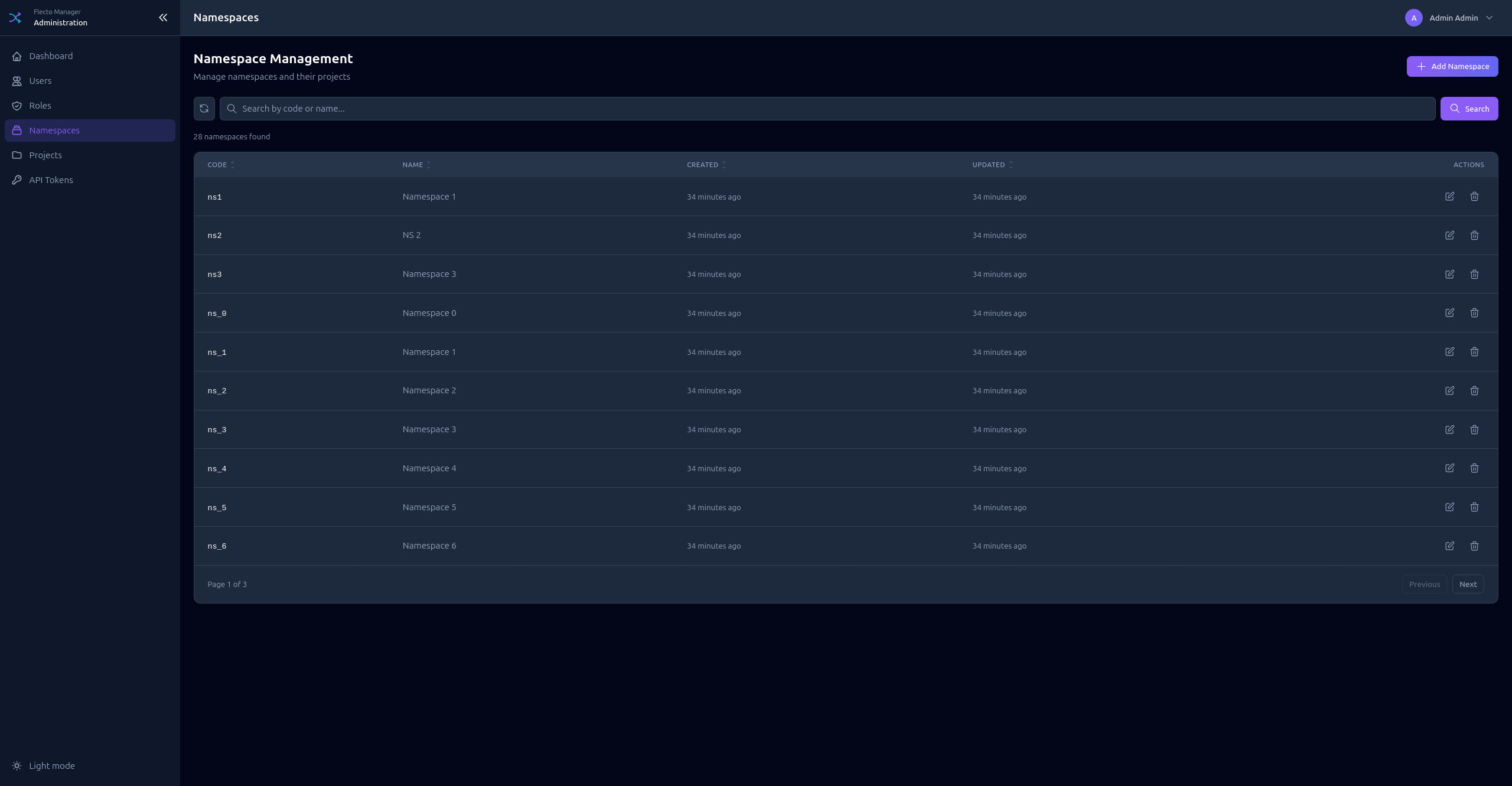
Namespaces are top-level groupings for projects (e.g., production, staging).
Creating a Namespace
- Click Add Namespace
- Enter a Code (unique identifier, used in URLs)
- Enter a Name (display name)
Projects
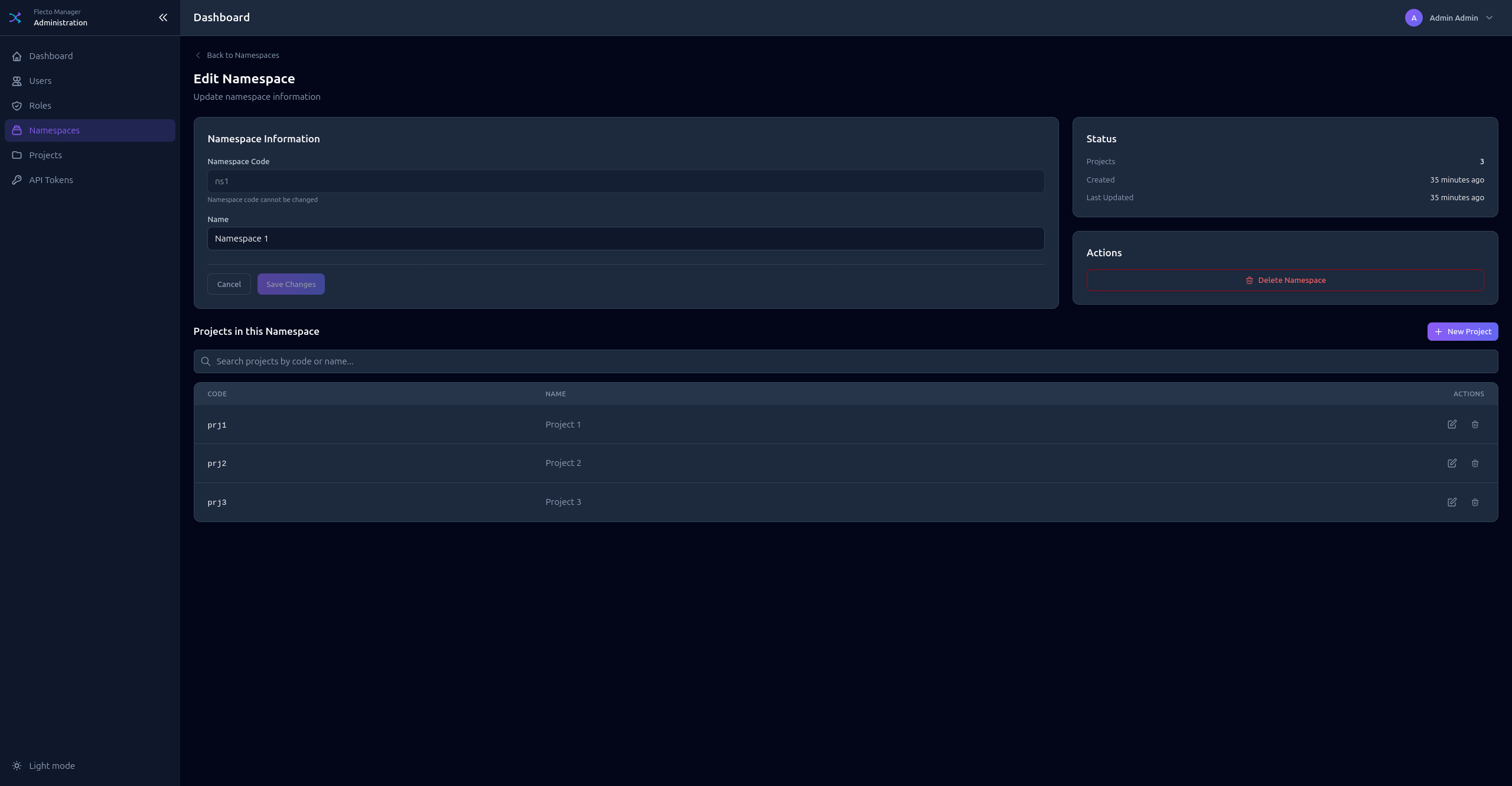
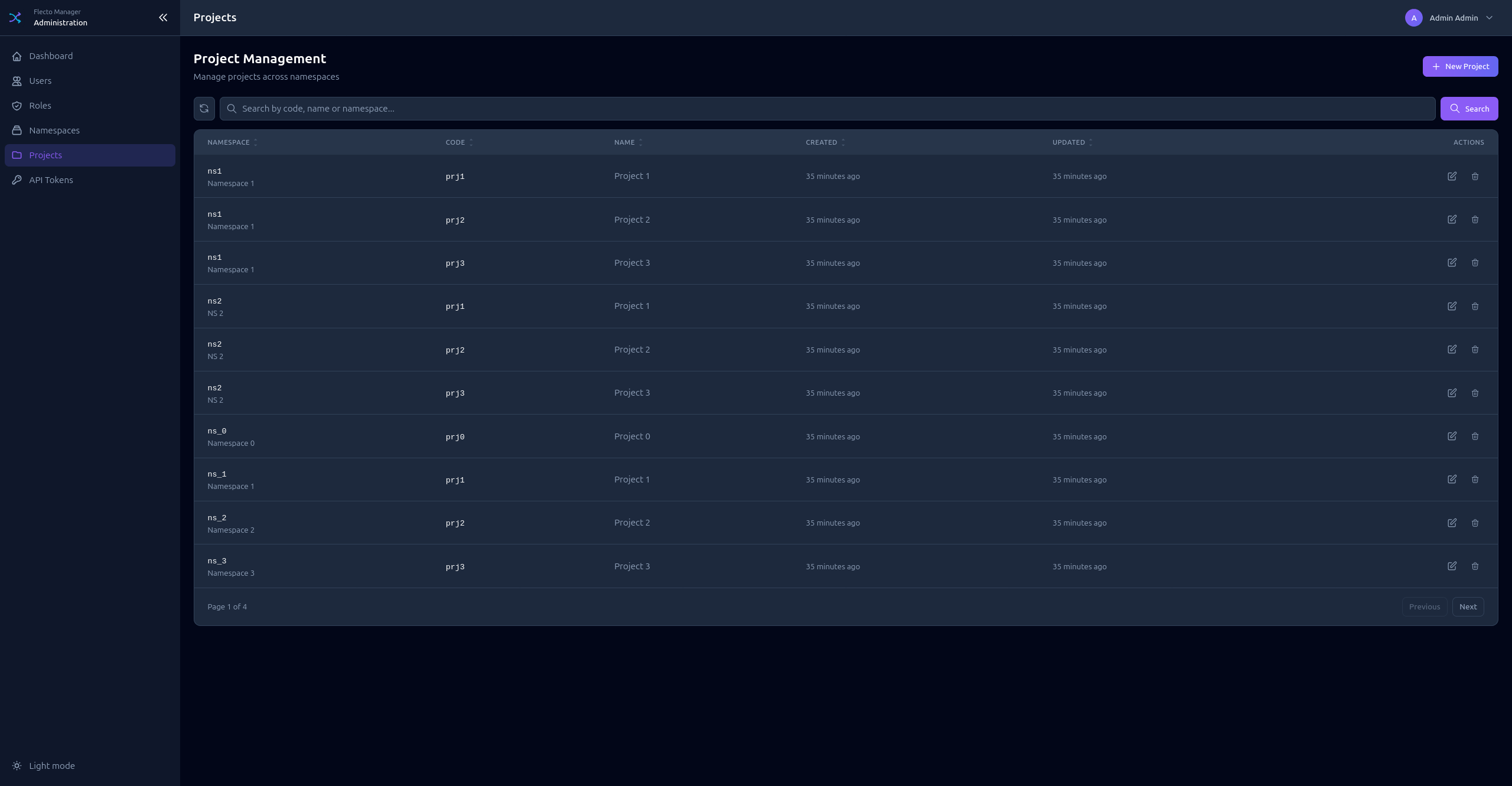
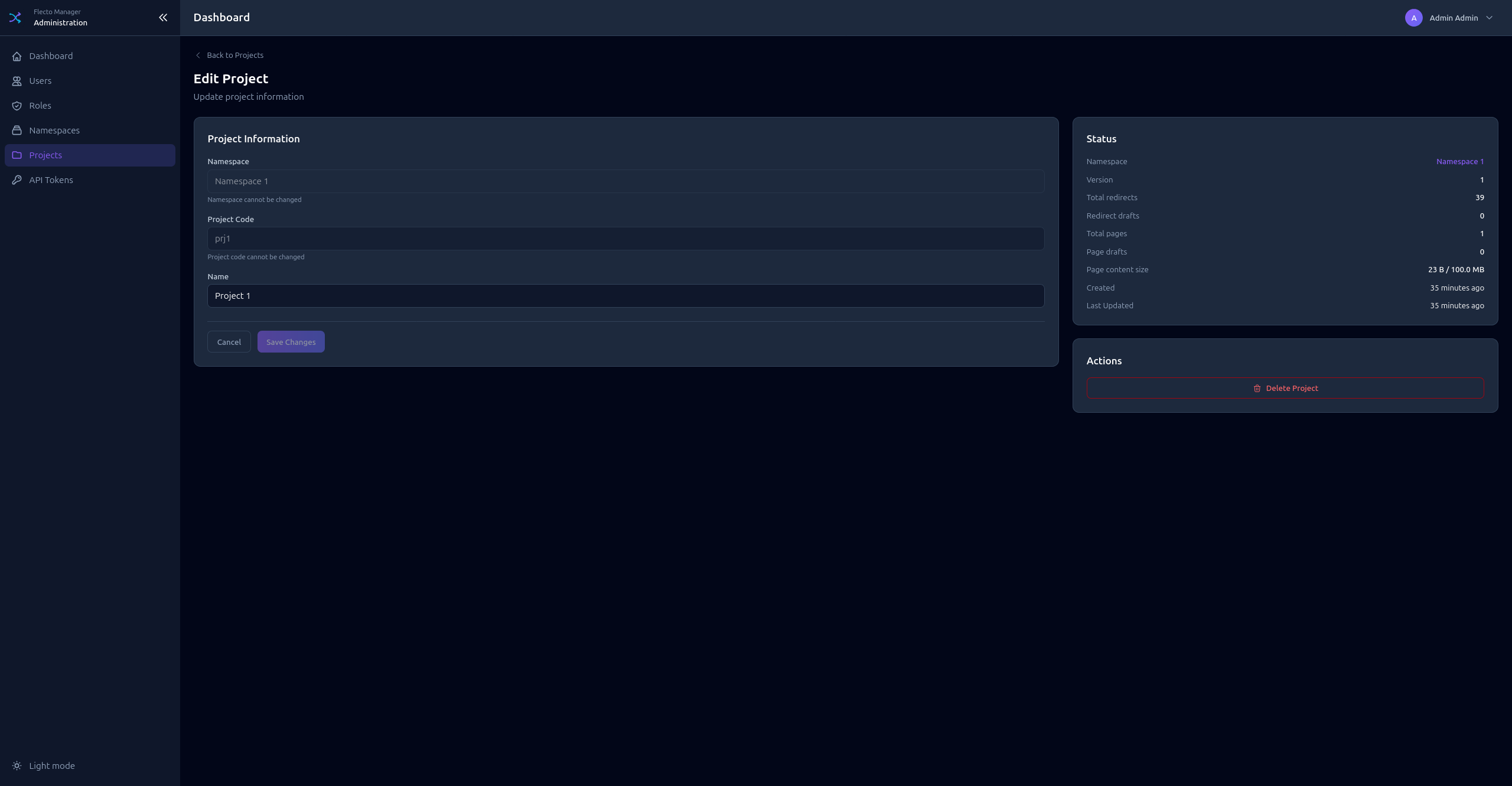
Projects belong to namespaces and contain redirects, pages, and agents.
Creating a Project
- Click Add Project
- Select the Namespace
- Enter a Code (unique within namespace)
- Enter a Name (display name)
Truncate actions
The project edit page offers three destructive actions, each scoped to that single namespace and project, and each asking for confirmation:
| Action | Removes | Publishes |
|---|---|---|
| Truncate all redirects | Every redirect, published and draft alike | Yes |
| Truncate all pages | Every page, published and draft alike | Yes |
| Truncate activity journal | Every journal entry | No |
Redirects and pages are published straight away. Agents only re-sync when the project version changes, so without that publish they would keep serving the redirects and pages that were just deleted. The response reports the new version.
Truncating the journal does not publish anything, since the journal is not part of what agents serve.
All three require write access to the Projects admin section, not project resource permissions: a user who can edit a project's redirects cannot wipe them. Each truncate is itself recorded in the activity journal.
API Tokens
Generate API tokens for agents and automation.
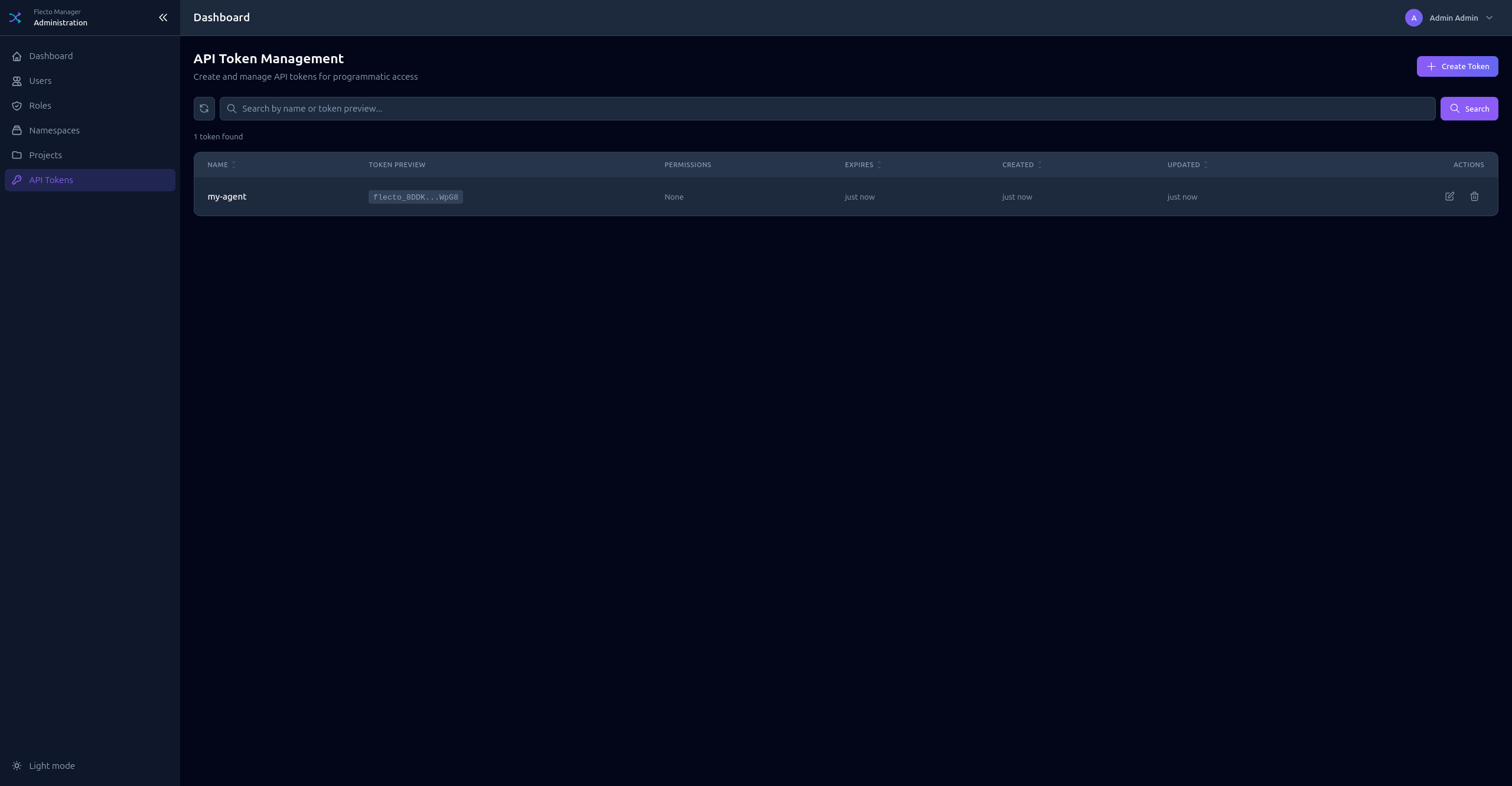
Creating a Token
- Click Add Token
- Enter a Name (descriptive identifier)
- Set optional Expiration date
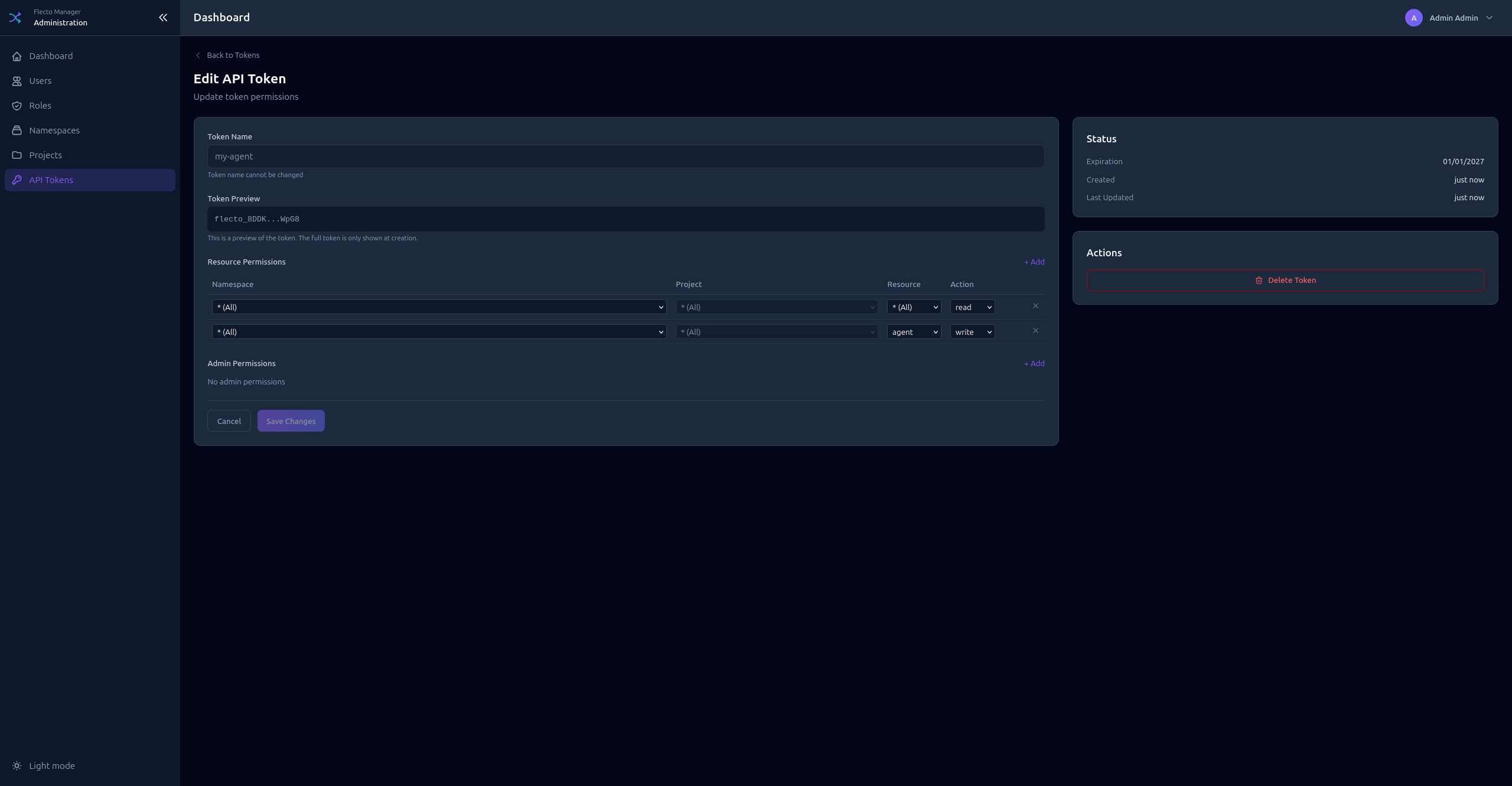
- Configure Permissions (same as role permissions)
- Click Create
- Copy the token immediately - it's only shown once!
Token Format
Tokens have the format: flecto_xxxxxxxxxxxx...
The token list shows a preview: flecto_abcd...wxyz
Token Permissions
API tokens have their own permissions, independent of user roles. Configure:
- Admin Permissions - For tokens that need admin access
- Resource Permissions - For tokens that access specific projects
For agents, create tokens with only the necessary resource permissions (read access to the specific namespace/project).